
2023 New Features
Master Data Management
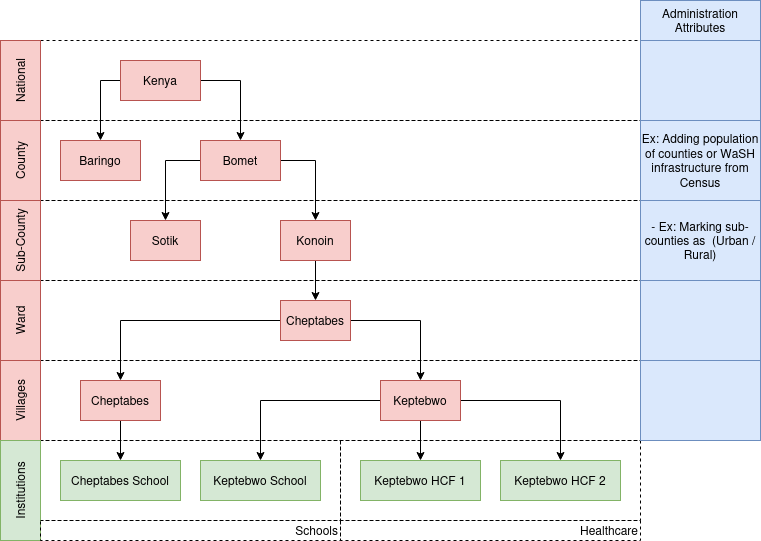
User Interactions
Add / Edit Administration Attribute
- Step 1: Click the "Add Attribute" button.
- Step 2: Fill in the attribute name and select the type (e.g., "Value","Option", "Multiple Option", "Aggregate").
- Step 3: If the attribute type is "Option,Multiple Option or Aggregate" click the "+" button to add more options.
- Step 4: Click "Submit" to save.
- Step 5: Success alert message appears and return to Administration Attribute list
API: administration-attribute-crud
Add / Edit Administration
- Step 1: Click "Add New Administration" or select an administrative area to edit.
- Step 2: Select Level Name.
- Step 3: Select the parent administration using a cascading drop-down.
- Step 4: Fill in administration details (name, parent, and code).
- Step 5: Fill in attributes and their values.
- For Value type: Input Number
- For Option and Multiple Option type: Drop-down option
- For Aggregate: It will shows table with 2 columns, the columns are: name, value
- Name: the dissagregation name
- Value: Input Number
- Step 6: Click "Submit" to save.
- Step 7: Confirmation message appears.
- Step 8: Options to return to administration list.
API: administration-crud
Administration / Entity Attribute Types
Option & Multiple Option Values
Use Case
We have a dataset that contains categorical information about the types of land use for various regions. This data will be utilized to classify and analyze land use patterns at the county level.
Feature
To achieve this, we will need to define option values for an attribute. In this scenario, the workflow is as follows:
Define Attribute
Define Option Values
Upload Data for Counties
In this case, we define the "Option Values" for the "Land Use Type" attribute, allowing us to categorize land use patterns at the county level. The actual data for individual counties is then uploaded using the defined options.
Single Numeric Values
Use Case
We possess household counts from the 2019 census that correspond to the RTMIS administrative list at the sub-county level. This data can be employed to compute the household coverage per county, which is calculated as (# of households in that sub-county in RTMIS / # from the census).
Feature
To achieve this, we need to store the population value for individual sub-counties as part of their attributes. In this scenario, the workflow is as follows:
Define Attribute
- Attribute Name: Census HH Count
- Attribute Code:
<Unique Identifier>Census_HH_Count - Type: Single Numeric Value
- Administration Level: Sub-County
Upload Data for Individual Sub-Counties
| Sub-County | Attribute Code | Value |
|---|---|---|
| CHANGAMWE | Census_HH_Count | 46,614 |
| JOMVU | Census_HH_Count | 53,472 |
In this case, the values for the county level will be automatically aggregated.
Disaggregated Numeric Values
Use Case
We aim to import data from the CLTS platform or the census regarding the count of different types of toilets, and we have a match at the sub-county level. This data will serve as baseline values for visualization.
Feature
For this use case, we need to store disaggregated values for an attribute. To do so, we will:
Define the Attribute
- Attribute Name: Census HH Toilet Count
- Attribute Code:
<Unique Identifier>Census_HH_Toilet_Count - Type: Disaggregated Numeric Values
- Disaggregation: “Improved”, “Unimproved”
- Administration Level: Sub-County
Upload Data for Individual Sub-Counties
| Sub-County | Attribute Code | Disaggregation | Value |
|---|---|---|---|
| CHANGAMWE | Census_HH_Toilet_Count | Improved | 305,927 |
| CHANGAMWE | Census_HH_Toilet_Count | Unimproved | 70,367 |
Bulk Upload
As an administrator of the system, the ability to efficiently manage and update administrative data is crucial. To facilitate this, a feature is needed that allows for the bulk uploading of administrative data through a CSV file. This CSV file format is generated based on the administration attribute table, ensuring that it includes all necessary columns for both administrative levels and their respective attributes.
The CSV template, derived from the administration attribute table, will contain columns representing various administrative levels (such as National, County, Sub-County, Ward, and Village) along with their respective IDs. Additionally, it will include columns for different attributes associated with each administrative unit, as defined in the administration attribute table.
Acceptance Criteria
CSV File Format and Structure
Optional Codes and Attributes
Data Validation and Integrity
User Feedback and Error Handling
Access Control
Notes
Levels model ensures consistency and proper categorization of the administrative units within the system's framework.
Database Overview
Entities Table
| pos | table | column | null | dtype | len | default |
|---|---|---|---|---|---|---|
| 1 | Entities | id | Integer | |||
| 2 | Entities | name | Text |
Entity Data Table
| pos | table | column | null | dtype | len | default |
|---|---|---|---|---|---|---|
| 1 | Entity Data | id | Integer | |||
| 2 | Entity Data | entity_id | Integer | |||
| 3 | Entity Data | name | Text | |||
| 4 | Entity Data | administration_id | Integer |
Entity Attributes
| pos | table | column | null | dtype | len | default |
|---|---|---|---|---|---|---|
| 1 | Entity Attributes | id | Integer | |||
| 2 | Entity Attributes | entity_id | Integer | |||
| 3 | Entity Attributes | name | Text |
Entity Attributes Options
| pos | table | column | null | dtype | len | default |
|---|---|---|---|---|---|---|
| 1 | Entity Attributes Options | id | Integer | |||
| 2 | Entity Attributes Options | entity_attribute_id | Integer | |||
| 3 | Entity Attributes Options | name | Text |
Entity Values
| pos | table | column | null | dtype | len | default |
|---|---|---|---|---|---|---|
| 1 | Entity Values | id | Integer | |||
| 2 | Entity Values | entity_data_id | Integer | |||
| 3 | Entity Values | entity_attribute_id | Integer | |||
| 4 | Entity Values | value | Text |
Administration Table
| pos | table | column | null | dtype | len | default |
|---|---|---|---|---|---|---|
| 1 | administrator | id | NO | bigint | administrator_id_seq | |
| 2 | administrator | code | YES | character varying | 255 | |
| 3 | administrator | name | NO | text | ||
| 4 | administrator | level_id | NO | bigint | ||
| 5 | administrator | parent_id | YES | bigint | ||
| 6 | administrator | path | YES | text |
Administration Attributes
| pos | table | column | null | dtype | len | default |
|---|---|---|---|---|---|---|
| 1 | Administration Attributes | id | Integer | |||
| 2 | Administration Attributes | level_id | Integer | |||
| 3 |
Administration Attribute |
code |
Text |
Unique (Auto-Generated) |
||
| 4 | Administration Attributes | Type | Enum (Number, Option, Aggregate) |
|||
| 5 | Administration Attributes | name | Text |
Administration Attributes Options
| pos | table | column | null | dtype | len | default |
|---|---|---|---|---|---|---|
| 1 | Administration Attributes Options | id | Integer | |||
| 2 | Administration Attributes Options | administration_attributes_id | Integer | |||
| 3 | Administration Attributes Options | name | Text |
Administration Values
| pos | table | column | null | dtype | len | default |
|---|---|---|---|---|---|---|
| 1 | Administration Values | id | Integer | |||
| 2 | Administration Values | administration_id | Integer | |||
| 3 | Administration Values | administration_attributes_id | Integer | |||
| 4 | Administration Values | value | Integer | |||
| 5 |
Administrative Values |
option |
Text |
Rules:
- Attribute Type: Numeric
- value: NOT NULL
- option: NULL
- Attribute Type: Option
- value: NULL
- option: NOT NULL
- Attribute Type: Aggregate
- value: NOT NULL
- option: NOT NULL
Validation for Option Type
- If parent has a value for a particular administration_attributes_id, then invalidate the children input.
- If children have a value for a particular administration_attributes_id, then override the children value.
Materialized View for Aggregation
Visualization Query
| id | type | name | attribute | option | value |
|---|---|---|---|---|---|
| 1 | administration | Bantul | Water Points Type | Dugwell | 1 |
| 2 | entity | Bantul School | Type of school | Highschool | 1 |
API Endpoints
Administration Endpoints
Administration CRUD (POST & PUT)
{
  "parent_id": 1,
  "name": "Village A",
  "code": "VA",
  "attributes": [{
      "attribute":1,
      "value": 200,
    },{
      "attribute":2,
      "value": "Rural",
    },{
      "attribute":3,
      "value": ["School","Health Facilities"],
    },{
      "attribute":4,
      "value": {"Improved": 100,"Unimproved": 200},
    }
  ]
}
Administration Detail (GET)
{
  "id": 2,
  "name": "Tiati",
  "code": "BT",
  "parent": {
    "id": 1,
    "name": "Baringo",
    "code": "B"
  },
  "level": {
    "id": 1,
    "name": "Sub-county"
  },
  "childrens": [{
    "id": 2,
    "name": "Tiati",
    "code": "BT"
  }],
  "attributes": [{
      "attribute":1,
      "type": "value",
      "value": 200,
    },{
      "attribute":2,
      "type": "option",
      "value": "Rural",
    },{
      "attribute":3,
      "type": "multiple_option",
      "value": ["School","Health Facilities"],
    },{
      "attribute":4,
      "type": "aggregate",
      "value": {"Improved": 100,"Unimproved": 200},
    }
  ]
}
Administration List (GET)
Query Parameters (for filtering data):
- parent (only show data that has same parent id, so the parent itself should not be included)
- search (search keyword: by name or code)
- level
- Rules:
- Always filter parent_id = null (Kenya) by default
{
  "current": "self.page.number",
  "total": "self.page.paginator.count",
  "total_page": "self.page.paginator.num_pages",
  "data":[
    {
      "id": 2,
      "name": "Tiati",
      "code": "BT",
      "parent": {
        "id": 1,
        "name": "Baringo",
      },
      "level": {
        "id": 1,
        "name": "Sub-county"
      }
    }
]}
Administration Attributes CRUD (POST & PUT)
{
  "name": "Population",
  "type": "value",
  "options": []
}
Administration Attributes (GET)
[{
  "id": 1,
  "name": "Population",
  "type": "value",
  "options": []
},{
  "id": 2,
  "name": "Wheter Urban or Rural",
  "type": "option",
  "options": ["Rural","Urban"]
},{
  "id": 3,
  "name": "HCF and School Availability",
  "type": "multiple_option",
  "options": ["School","Health Care Facilities"]
},{
  "id": 4,
  "name": "JMP Status",
  "type": "aggregate",
  "options": ["Improved","Unimproved"]
}]
Database Seeder
Administration Seeder
In the updated approach for seeding initial administration data, the shift from using TopoJSON to Excel file format is being implemented. While TopoJSON has been the format of choice, particularly for its geospatial data capabilities which are essential for visualization purposes, the move to Excel is driven by the need for a more flexible and user-friendly data input method.
However, this transition introduces potential challenges in maintaining consistency between the Excel-based administration data and the TopoJSON used for visualization. The inherent differences in data structure and handling between these two formats could lead to discrepancies, impacting the overall data integrity and coherence in the system. This change necessitates a careful consideration of strategies to ensure that the data remains consistent and reliable across both formats.
Key Considerations
- Data Format and Consistency: The shift to Excel might introduce inconsistencies with the TopoJSON format, especially in terms of data structure and geospatial properties.
- Data Validation: Robust validation is essential to mitigate errors common in Excel files.
- Import Complexity: Managing complex Excel structures requires additional parsing mechanisms.
- Scalability and Performance: Excel's performance with large datasets and memory usage should be monitored.
- Security and Integrity: Increased risk of data tampering in Excel files, and challenges in version control.
- Automation and Workflow Integration: Adapting automation processes to accommodate Excel's format variations.
- User-Provided Data: Dependence on external data updates necessitates clear handling policies.
Excel File Structure for Seeder
File Naming Convention
- Each Excel file represents a county.
- File names follow the format:
<county_id>-<county_name>.xlsx - Example:
101-Nairobi.xlsx,102-Mombasa.xlsx
File Content Structure
Each file contains details of sub-counties and wards within the respective county.
| Sub-County_ID | Sub-County | Ward_ID | Ward |
|---|---|---|---|
| 201 | Westlands | 301 | XYZ |
| 201 | Westlands | 302 | ABC |
| ... | ... | ... | ... |
Seeder Adaptation
- Hard-coded National Level: The national level, Kenya, should be hard-coded in the seeder.
- Dynamic County Processing: The seeder dynamically processes each county file, creating or updating records for sub-counties and wards.
- File Processing Logic: The seeder reads the file name to determine the county and iterates through each row to seed data for sub-counties and wards.
Administration Attribute Seeder
Assumptions
- Administration IDs are available and consistent.
- The attributes are stored in an Excel file, with a structure that includes administration IDs and their corresponding attributes.
Example Excel File Structure
| Admin_ID | Attribute1 | Attribute2 | ... |
|---|---|---|---|
| 1 | Value1 | Value2 | ... |
| 2 | Value1 | Value2 | ... |
| ... | ... | ... | ... |
Seeder Script
import pandas as pd
from your_app.models import Administration, AdministrationAttribute

class AdministrationAttributeSeeder:
    def __init__(self, file_path):
        self.file_path = file_path

    def run(self):
        # Load data from Excel file
        df = pd.read_excel(self.file_path)

        # Iterate through each row in the DataFrame
        for index, row in df.iterrows():
            admin_id = row['Admin_ID']
            # Retrieve the corresponding Administration object
            administration = Administration.objects.get(id=admin_id)

            # Create or update AdministrationAttribute
            for attr in row.index[1:]:  # Skipping the first column (Admin_ID)
                attribute_value = row[attr]
                AdministrationAttribute.objects.update_or_create(
                    administration=administration,
                    attribute_name=attr,
                    defaults={'attribute_value': attribute_value}
                )

        print("Administration attributes seeding completed.")

# Usage
seeder = AdministrationAttributeSeeder('path_to_your_excel_file.xlsx')
seeder.run()
Note:
- File Path: Replace
'path_to_your_excel_file.xlsx'with the actual path to the Excel file containing the administration attributes, the excel files will be safely stored in backend/source. - Model Structure: This script assumes the existence of
AdministrationandAdministrationAttributemodels. Adjust the script according to your actual model names and structures. update_or_create: This method is used to either update an existing attribute or create a new one if it doesn't exist.- Error Handling: Add appropriate error handling to manage cases where the administration ID is not found or the file cannot be read.