# Expo.dev - Register Account and Setup Project

<span style="color: rgb(0, 0, 0);"><span style="font-size: 11pt; font-family: Arial, sans-serif; background-color: transparent; font-weight: 400; font-style: normal; font-variant: normal; text-decoration: none; vertical-align: baseline; white-space: pre-wrap;">1. To begin using Expo, navigate to the Expo homepage. In the top right corner of the page, click on the "Sign Up" button. This will allow you to create a new account and gain access to Expo's ecosystem of tools for developing, reviewing, and deploying applications. If you already have an account, you can select the "Log In" option instead.</span><span style="font-size: 11pt; font-family: Arial, sans-serif; background-color: transparent; font-weight: 400; font-style: normal; font-variant: normal; text-decoration: none; vertical-align: baseline; white-space: pre-wrap;">  
</span><span style="font-size: 11pt; font-family: Arial, sans-serif; background-color: transparent; font-weight: 400; font-style: normal; font-variant: normal; text-decoration: none; vertical-align: baseline; white-space: pre-wrap;"><span style="border: none; display: inline-block; overflow: hidden; width: 602px; height: 308px;">![](https://lh7-rt.googleusercontent.com/docsz/AD_4nXcaCY5-drM1hUaKHz44PpDhwjU8ImbTaJHxnOJDSKIMOatzMVmk1d5o-jRyBGGaZmJbo2b7tPeYzX9i5ZkT-UlyafoZE6BQW8iUSB9MiGJ9TJPK_hCIjXksEZlAYWBugO11UqdrqpoG0C1oTJqh0pSfYu-A?key=JFFlnz_LjLklOxaAM5v3WQ)  
  
</span></span></span>

<span style="font-size: 11pt; font-family: Arial,sans-serif; color: #000000; background-color: transparent; font-weight: 400; font-style: normal; font-variant: normal; text-decoration: none; vertical-align: baseline; white-space: pre-wrap;">  
2\. Once you've clicked the "Sign Up" button, you'll be directed to the account creation page. Fill in the required fields. </span>

<span style="color: rgb(0, 0, 0);"><span style="font-size: 11pt; font-family: Arial, sans-serif; background-color: transparent; font-weight: 400; font-style: normal; font-variant: normal; text-decoration: none; vertical-align: baseline; white-space: pre-wrap;">  
</span><span style="font-size: 11pt; font-family: Arial, sans-serif; background-color: transparent; font-weight: 400; font-style: normal; font-variant: normal; text-decoration: none; vertical-align: baseline; white-space: pre-wrap;">  
</span><span style="font-size: 11pt; font-family: Arial, sans-serif; background-color: transparent; font-weight: 400; font-style: normal; font-variant: normal; text-decoration: none; vertical-align: baseline; white-space: pre-wrap;"><span style="border: none; display: inline-block; overflow: hidden; width: 602px; height: 309px;">![](https://lh7-rt.googleusercontent.com/docsz/AD_4nXeTa5L9Y35EHaw3x_1deHMx-X38uDFDXsSHoWnH8StJyeTyXtyhjrNyE-8lZXYOs9VowZtU8YROdFEBT8mu0bmj2UPJKH1jm0FLNitJP8mguLnk4581Y88Sg0k8KFQaRFznTSpSyyc_Q30IF3eR2-Q3Il9p?key=JFFlnz_LjLklOxaAM5v3WQ)</span></span></span>

<span style="color: rgb(0, 0, 0);">  
  
</span>

<span style="color: rgb(0, 0, 0);"><span style="font-size: 11pt; font-family: Arial, sans-serif; background-color: transparent; font-weight: 400; font-style: normal; font-variant: normal; text-decoration: none; vertical-align: baseline; white-space: pre-wrap;">3. After successfully logging into your Expo account, you'll land on the Dashboard. To start your first project, click on the "Create a Project" button prominently displayed in this section.</span><span style="font-size: 11pt; font-family: Arial, sans-serif; background-color: transparent; font-weight: 400; font-style: normal; font-variant: normal; text-decoration: none; vertical-align: baseline; white-space: pre-wrap;">  
</span><span style="font-size: 11pt; font-family: Arial, sans-serif; background-color: transparent; font-weight: 400; font-style: normal; font-variant: normal; text-decoration: none; vertical-align: baseline; white-space: pre-wrap;"><span style="border: none; display: inline-block; overflow: hidden; width: 602px; height: 308px;">![](https://lh7-rt.googleusercontent.com/docsz/AD_4nXe2w_ylvT0FVEm1g9YStysOtl-t9z-MTjvwcg_HgW7qNmSCiKQYCj6q5fMwApe0vaCPHm6kSXliqdDpzJe6NFuK0H5ZMFnG8vR6VKb-mm_GTbpAWNWN7rcaTGFrQUZfx6N06070aM1bYzn4MxE5YFRP5pY6?key=JFFlnz_LjLklOxaAM5v3WQ)  
  
</span></span></span>

<span style="font-size: 11pt; font-family: Arial,sans-serif; color: #000000; background-color: transparent; font-weight: 400; font-style: normal; font-variant: normal; text-decoration: none; vertical-align: baseline; white-space: pre-wrap;">  
4\. After clicking "Create a Project," a dialog window will open prompting you to enter specific details for your new project:</span>

1. 1. <span style="font-size: 11pt; font-family: Arial,sans-serif; color: #000000; background-color: transparent; font-weight: 400; font-style: normal; font-variant: normal; text-decoration: none; vertical-align: baseline; white-space: pre-wrap;">Display Name: Enter a human-readable name for your project (e.g., "Mobile App"). This is how the project will be displayed within the Expo platform.</span>
    2. <span style="font-size: 11pt; font-family: Arial,sans-serif; color: #000000; background-color: transparent; font-weight: 400; font-style: normal; font-variant: normal; text-decoration: none; vertical-align: baseline; white-space: pre-wrap;">Slug: Provide a unique, URL-friendly name for your project (e.g., "mobile-app"). This slug will be used in the project's URL, so it should be unique across your account.</span>

<span style="font-size: 11pt; font-family: Arial,sans-serif; color: #000000; background-color: transparent; font-weight: 400; font-style: normal; font-variant: normal; text-decoration: none; vertical-align: baseline; white-space: pre-wrap;"><span style="font-size: 11pt; font-family: Arial,sans-serif; color: #000000; background-color: transparent; font-weight: 400; font-style: normal; font-variant: normal; text-decoration: none; vertical-align: baseline; white-space: pre-wrap;"><span style="border: none; display: inline-block; overflow: hidden; width: 602px; height: 308px;">![](https://lh7-rt.googleusercontent.com/docsz/AD_4nXdLxkDlfDNxk_IHSvaqOoV0ebSgNtFvK-hAgWYNnWD-FdJMHK2oE2B2KV_4Xv3T8yXJiEVuKINcRWJ852VsSFeAUPqk5b6eWNgmBlWyb2byIBicORvNptYQyi0zjbKwD3JGvWqs4sy812HcUUs1CPDddZI?key=JFFlnz_LjLklOxaAM5v3WQ)</span></span></span>

<span style="color: rgb(0, 0, 0);"><span style="font-size: 11pt; font-family: Arial, sans-serif; background-color: transparent; font-weight: 400; font-style: normal; font-variant: normal; text-decoration: none; vertical-align: baseline; white-space: pre-wrap;">5. To ensure proper access for managing your projects, navigate to the Access Tokens section in the sidebar of the dashboard. Here, you can create and manage robot users. Robot Users: Create a robot user for automated processes or third-party integrations, click on the "Add robot" button.   
  
</span><span style="font-size: 11pt; font-family: Arial, sans-serif; background-color: transparent; font-weight: 400; font-style: normal; font-variant: normal; text-decoration: none; vertical-align: baseline; white-space: pre-wrap;"><span style="border: none; display: inline-block; overflow: hidden; width: 602px; height: 308px;">![](https://lh7-rt.googleusercontent.com/docsz/AD_4nXchYOc0Kl_PBxnYM23ICat2_KiURdQYmpFiNsGenfmPh2TgBmz7IrAkFoDQML9zRicZQXdhyMtSuIM8gH1rJGNmHLz_LjwlJehWCZTjNxiSHFxo7rjH7TJw6PDvm21fpGoyMw1Pdv56R7iET1KMr6VZxH8?key=JFFlnz_LjLklOxaAM5v3WQ)</span></span><span style="font-size: 11pt; font-family: Arial, sans-serif; background-color: transparent; font-weight: 400; font-style: normal; font-variant: normal; text-decoration: none; vertical-align: baseline; white-space: pre-wrap;">  
</span><span style="font-size: 11pt; font-family: Arial, sans-serif; background-color: transparent; font-weight: 400; font-style: normal; font-variant: normal; text-decoration: none; vertical-align: baseline; white-space: pre-wrap;">  
</span><span style="font-size: 11pt; font-family: Arial, sans-serif; background-color: transparent; font-weight: 400; font-style: normal; font-variant: normal; text-decoration: none; vertical-align: baseline; white-space: pre-wrap;">Set the role to "Developer"  
</span><span style="font-size: 11pt; font-family: Arial, sans-serif; background-color: transparent; font-weight: 400; font-style: normal; font-variant: normal; text-decoration: none; vertical-align: baseline; white-space: pre-wrap;"><span style="border: none; display: inline-block; overflow: hidden; width: 602px; height: 307px;">![](https://lh7-rt.googleusercontent.com/docsz/AD_4nXdbYOQNqcQcyER7eAydIHFks6Hsasihdmy5yfU2b4KI0JFJkYsEzOk8j2_SZm-I8-mFNVoehV1CVbsUae2OUAteTGeQNH8FgumbnWKT4_kVBl2YNBFVTSx4dCMKTbFEgd5veGJr9z1O9XprnR8yyfnLgNEs?key=JFFlnz_LjLklOxaAM5v3WQ)  
  
  
</span></span></span>

<span style="color: rgb(0, 0, 0);"><span style="font-size: 11pt; font-family: Arial, sans-serif; background-color: transparent; font-weight: 400; font-style: normal; font-variant: normal; text-decoration: none; vertical-align: baseline; white-space: pre-wrap;">  
Click "Generate new token " button</span><span style="font-size: 11pt; font-family: Arial, sans-serif; background-color: transparent; font-weight: 400; font-style: normal; font-variant: normal; text-decoration: none; vertical-align: baseline; white-space: pre-wrap;">  
</span><span style="font-size: 11pt; font-family: Arial, sans-serif; background-color: transparent; font-weight: 400; font-style: normal; font-variant: normal; text-decoration: none; vertical-align: baseline; white-space: pre-wrap;"><span style="border: none; display: inline-block; overflow: hidden; width: 602px; height: 307px;">![](https://lh7-rt.googleusercontent.com/docsz/AD_4nXeGKF47dxhgGWb6j5li1Vv3Pl-dwmju2wV180_AEQOiLc6BOw90GMn1O_Z9Y-XwsiuvrPPSb-bFOpgLG-h8ck5SJoSpJTjm6qdaCdZRAF85F5YuY-KF8AU18Io6JZs-3iCYTO12QN9Vx-QVLqroMYI73Mkj?key=JFFlnz_LjLklOxaAM5v3WQ)  
</span></span></span>

<span style="color: rgb(0, 0, 0);">  
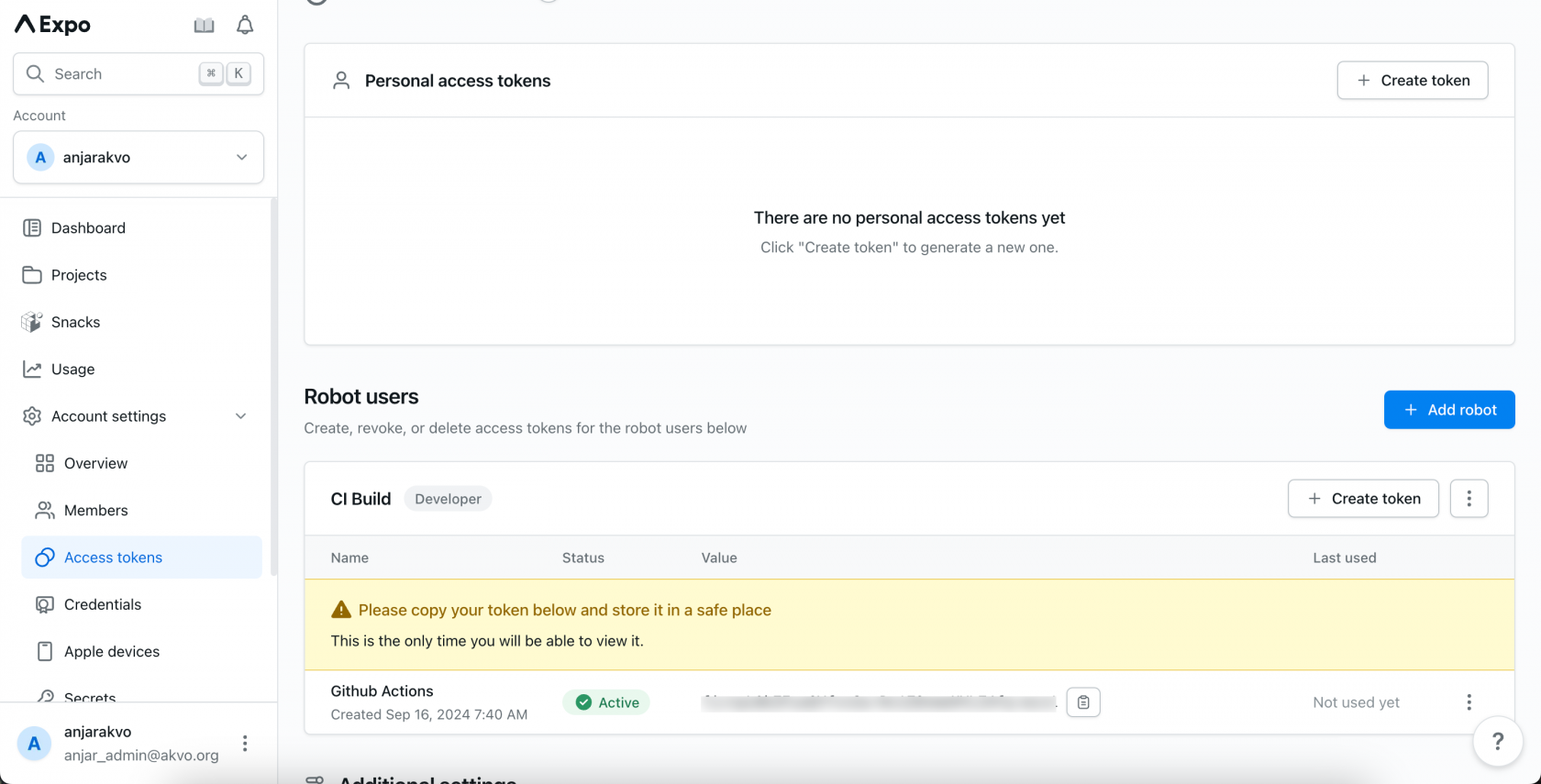
After creating your access token, it's vital to secure it properly. In the Access Tokens section, you will see your newly generated token listed, along with a warning indicating that you should copy and store it in a safe place.</span>  
<span style="color: rgb(0, 0, 0);">[![image.png](https://wiki.cloud.akvo.org/uploads/images/gallery/2024-09/scaled-1680-/pVVgLZPBOGK20Vlq-image.png)](https://wiki.cloud.akvo.org/uploads/images/gallery/2024-09/pVVgLZPBOGK20Vlq-image.png)</span>